Native HTML Validation Attributes Developers Often Miss

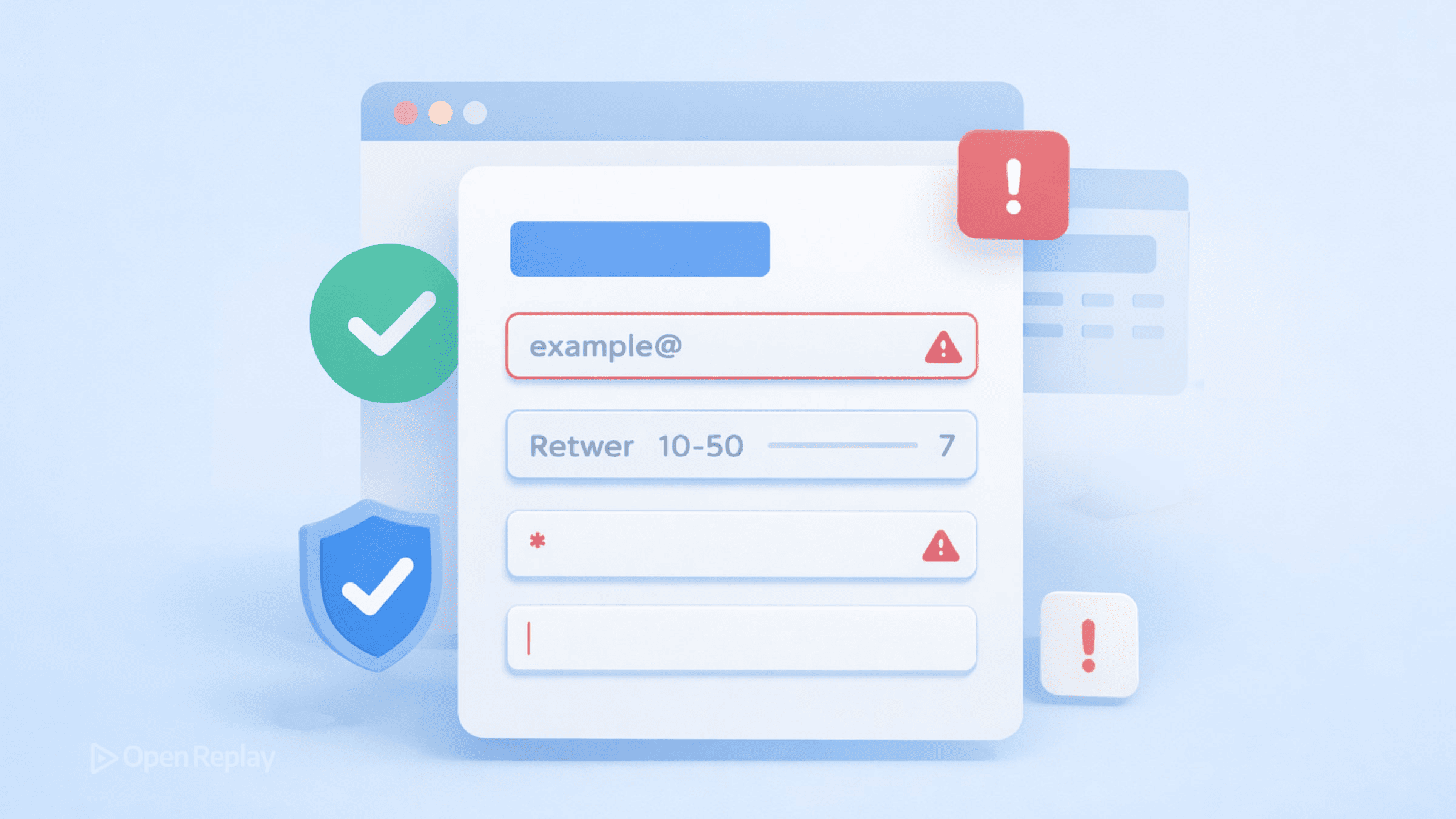
You’re writing custom JavaScript to validate forms that HTML could handle natively. Most frontend developers know required and pattern, but the platform offers far more—attributes that reduce code, improve accessibility, and create better UX without framework dependencies.
This article covers the HTML validation attributes you’re likely overlooking, plus the CSS and JavaScript features that make native form validation genuinely useful.
Key Takeaways
- The
formattribute lets controls associate with forms by ID, regardless of DOM position, eliminating complex wrapper structures. - Per-button attributes like
formaction,formmethod, andformnovalidatelet a single form behave differently based on which button submits it. - Modern
autocompletetokens (new-password,one-time-code,webauthn) improve autofill accuracy and trigger browser features like password generators. - CSS
:user-invalidsolves the “red borders on page load” problem by only showing errors after user interaction. - The Constraint Validation API (
setCustomValidity(),checkValidity(),reportValidity()) provides programmatic control when native validation needs augmentation.
The form Attribute: Controls Outside Forms
Need a submit button in your page header while the form lives in the main content? The form attribute lets any control associate with a form by ID, regardless of DOM position.
<form id="checkout">
  <input type="email" name="email" required>
</form>

<button type="submit" form="checkout">Complete Purchase</button>
This eliminates wrapper gymnastics and works with inputs, buttons, selects, and textareas alike.
Per-Button Overrides You Should Know
A single form can behave differently depending on which button submits it. These attributes override the parent form’s settings:
formaction— Submit to a different URLformmethod— Use GET instead of POST (or vice versa)formenctype— Change encoding for file uploadsformtarget— Open response in new tabformnovalidate— Skip validation entirely
The formnovalidate attribute deserves special attention. It’s essential for “Save Draft” buttons where incomplete data is acceptable.
Pattern Validation with Useful Error Messages
The pattern attribute accepts regex, but browsers show generic errors by default. Pair it with title to provide context:
<input type="text"
       pattern="[A-Z]{2}[0-9]{6}"
       title="Format: Two letters followed by six digits (e.g., AB123456)">
Note: when multiple is set on inputs such as type="email", the pattern is applied to each individual value, not to the full comma-separated string.
Modern autocomplete Tokens
Beyond on and off, autocomplete accepts semantic tokens that improve autofill accuracy:
autocomplete="new-password"— Triggers password generatorsautocomplete="one-time-code"— Optimizes for SMS verificationautocomplete="webauthn"— Signals passkey credential fields
These tokens reduce friction and signal intent to browsers and password managers (see the full token list in the HTML spec and MDN’s autocomplete documentation).
The dirname Attribute for Internationalization
When supporting right-to-left languages, dirname automatically submits text direction alongside the value:
<input type="text" name="comment" dirname="comment.dir">The form submits both comment (the value) and comment.dir (ltr or rtl). Essential for proper rendering of user-generated content.
Discover how at OpenReplay.com.
The readonly Nuance
A common misconception: readonly fields participate in form submission but behave differently with validation. They submit values and can be focused.
However, readonly controls are barred from constraint validation in modern HTML. This means attributes like required, pattern, min, or max are ignored for validation purposes on readonly inputs across current evergreen browsers.
If you need to display a value without allowing edits and without submitting it, disabled is often the better choice—though disabled fields do not submit their values.
CSS :user-invalid for Modern Form UX
The classic :invalid pseudo-class fires immediately, showing errors before users interact. The newer :user-invalid only matches after user interaction—solving the “red borders on page load” problem.
input:user-invalid {
  border-color: #dc3545;
}

input:user-valid {
  border-color: #28a745;
}
This creates better UX without JavaScript timing logic. Browser support is now solid across evergreen browsers (see :user-invalid on MDN).
The Constraint Validation API
When native validation needs augmentation, the Constraint Validation API provides programmatic control:
checkValidity()— Returns boolean, firesinvalidevent on failurereportValidity()— Returns boolean and shows native error UIsetCustomValidity()— Sets custom error messages
const password = document.querySelector('#password');
const confirm = document.querySelector('#confirm');

confirm.addEventListener('input', () => {
  confirm.setCustomValidity(
    password.value !== confirm.value ? 'Passwords must match' : ''
  );
});
Call setCustomValidity('') to clear errors—passing any non-empty string marks the field invalid.
When Native Validation Falls Short
Native validation handles most cases, but has limits:
- Cross-field validation (password confirmation) requires JavaScript
- Error message styling is browser-controlled
- Complex async validation (username availability) needs custom code
The strategy: use HTML validation attributes as your baseline, style with CSS :user-invalid, and add the Constraint Validation API only where necessary.
Conclusion
Native form validation has matured significantly. The attributes covered here—form, per-button overrides, dirname, modern autocomplete tokens—eliminate substantial custom JavaScript while improving accessibility by default.
Audit your existing forms. You’ll likely find validation logic that HTML handles natively, and UX problems that CSS :user-invalid solves without a single event listener.
FAQs
Native validation error bubbles have limited styling options controlled by the browser. You cannot directly style them with CSS. For custom-styled error messages, you can disable automatic validation UI using the novalidate attribute on the form, then use the Constraint Validation API to check validity and display your own error elements. The validationMessage property gives you access to the browser-generated error text.
Yes, native validation attributes work in frameworks since they render standard HTML. However, frameworks often manage form state differently, which can conflict with native validation. Many developers use the novalidate attribute and handle validation through framework state. You can still leverage the Constraint Validation API programmatically within your components for a hybrid approach.
Both methods return a boolean indicating whether the element passes validation constraints. The difference is in side effects: checkValidity() only fires the invalid event on failure, while reportValidity() also displays the browser's native error message UI. Use checkValidity() when you want to check validity silently, and reportValidity() when you want the browser to show error feedback to users.
You cannot validate that two fields match using only HTML attributes. This requires JavaScript. Use the Constraint Validation API by adding an input event listener to the confirmation field, then call setCustomValidity() with an error message when values differ or an empty string when they match. This integrates your custom logic with the native validation system.
Gain control over your UX
See how users are using your site as if you were sitting next to them, learn and iterate faster with OpenReplay. — the open-source session replay tool for developers. Self-host it in minutes, and have complete control over your customer data. Check our GitHub repo and join the thousands of developers in our community.